

YenGear Toolbox
Configure compatible YenGear I/O modules and serial gateways from your Windows computer. Use Configuration Tool for device setup and I/O checks, and the built-in Serial Monitor for local serial testing.
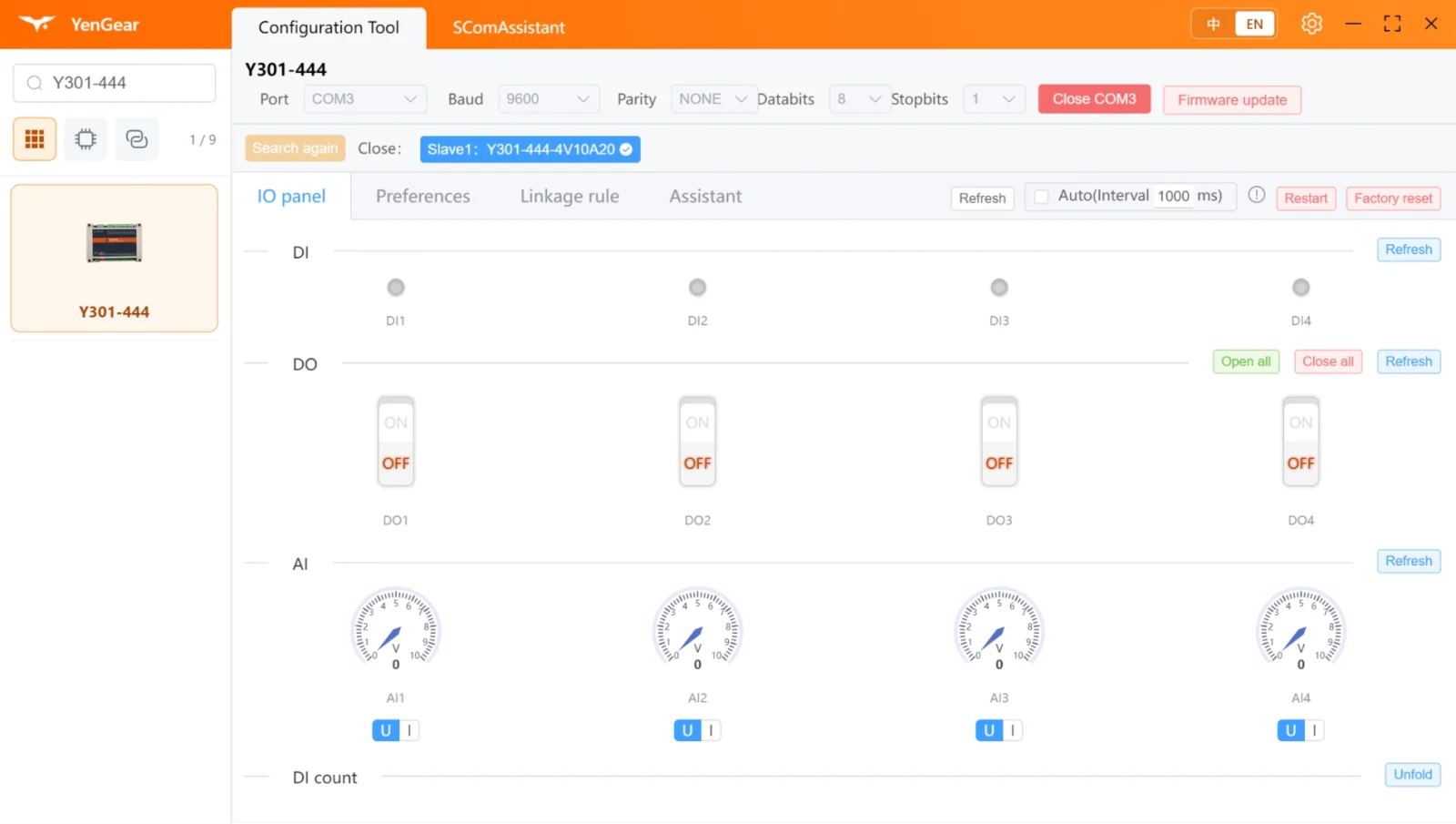
Connect to the Device You Want to Configure
Select the product, choose its serial port and match the communication settings. Search for the connected device, then open its configuration pages.
Available settings and controls depend on the device model and firmware. The examples on this page use Y301-444.
Prepare the connection
Follow the device wiring instructions, connect a suitable serial adapter and check that Windows recognizes its port.
Select and connect
Choose the product and match the device's current serial settings. Search for and select the intended device.
Configure and verify
Make the required changes, read them back and check the connected equipment where an output is involved.
Disconnect when finished
Complete the current operation and close the connection before switching modules or unplugging the adapter.
Check I/O and Set Local Rules
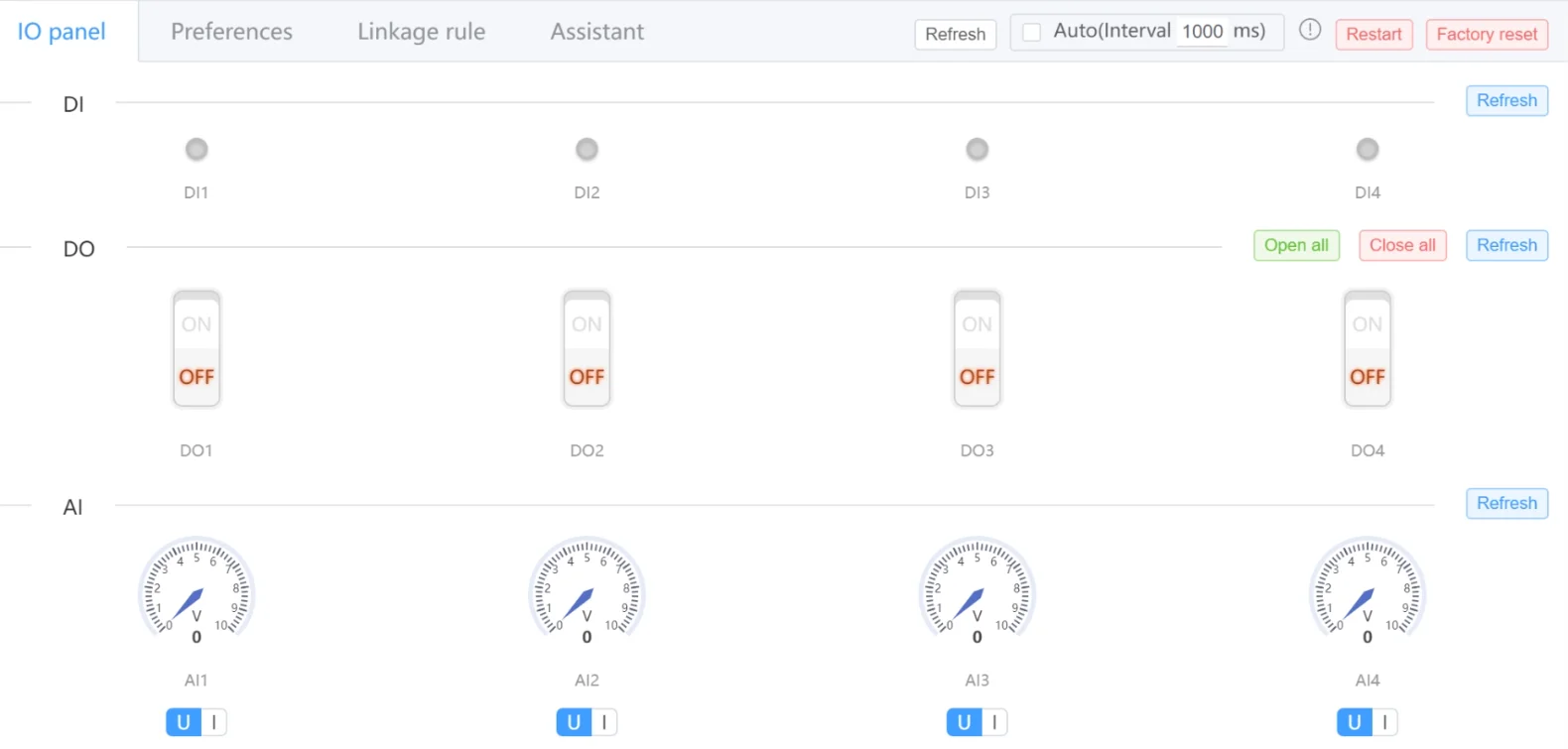
Check inputs and control outputs
Read digital and analog inputs, refresh the displayed values and operate supported outputs. When testing an output, check the connected equipment as well as the panel reading.
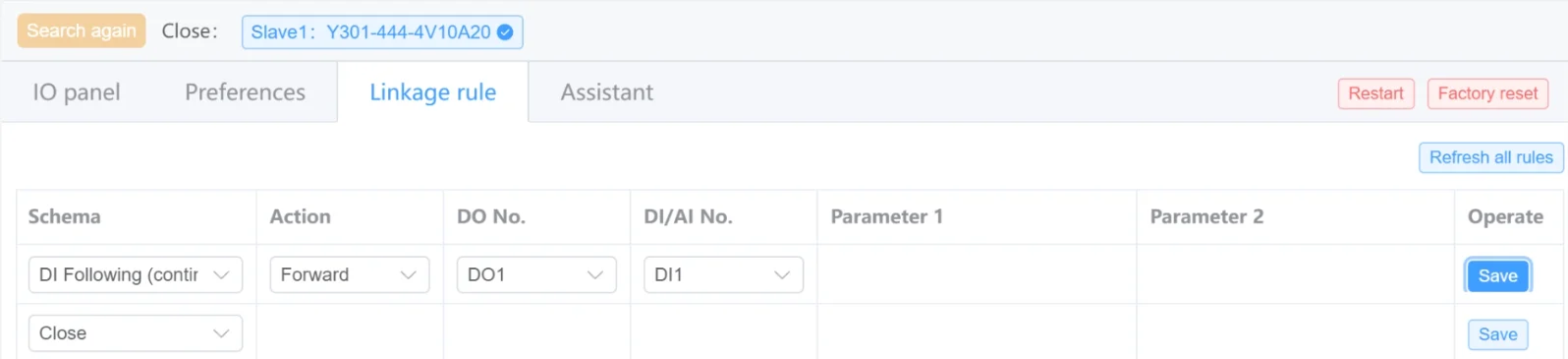
Configure supported local rules
Set the input, output and action for a rule the device supports. A forward DI-following rule, for example, turns DO1 on while DI1 is active and off while it is inactive. Save the rule, read it back and test both input states.
Rule modes and parameters depend on the device and firmware. Control names may differ between software versions.
Send Commands and Inspect Serial Traffic
The built-in Serial Monitor sends HEX or text commands from three command slots, with periodic sending and command sequences. Run sequences from a UTF-8 text file, calculate checksums and export traffic logs.
Open Online Serial MonitorSerial Monitor is included in the installer and runs locally. Stop sending and finish saving before switching modules, then open the serial port again manually.

Get YenGear Toolbox
Download the Windows installer. The Configuration Tool manual covers connection, I/O checks and DI-following examples.
Tell us your device model, firmware version, Windows version and the operation you want to perform.
Ask a Technical Question- Version
- 2.8.32
- Platform
- Windows installer
- File size
- 130.9 MB
- SHA-256
cc2bb79a2758cf82e540c2d19f5de5dff70fc238d06688d96d1a8fc6f009eb25
FAQ
Toolbox runs on Windows and works with compatible YenGear devices. Available controls depend on the device and firmware.
Which devices can I configure?
Configuration Tool works with compatible YenGear devices. Available pages, settings and rule modes depend on the model and firmware. Y301-444 is used in the examples. Send us your device model and firmware version if you need help confirming compatibility.
Is Toolbox a browser tool?
Toolbox is an installed Windows application. The separate Online Serial Monitor runs in a desktop browser with Web Serial support, such as Chrome or Edge, and needs your permission to access a local serial port.
Can I use it without an internet connection?
The installed Configuration Tool and built-in Serial Monitor work through local device connections. Downloading the installer and checking for software updates require an internet connection.
Can Configuration Tool and Serial Monitor use the same port at once?
No. Stop the current operation and close its connection before switching modules, then open the port manually in the module you want to use. Sending does not resume automatically when you return to Serial Monitor.
Does an ON indication prove that my equipment is running?
No. An output state and the connected equipment's actual operation are different checks. Confirm the equipment's response and use suitable feedback or measurement where it is required.
What should I check if my device is not found?
Check the adapter driver, device power, serial wiring, selected product and current serial settings. Close any other application using the port, then search again. The user manual includes connection and troubleshooting steps.