
iPhone
Install the app from the App Store and sign in with your YenGear IoT Cloud account.
The App Store provides the latest version available in your region.
 YenGear Cloud
Check device readings, review trends and operate supported controls with the mobile app for YenGear IoT Cloud.
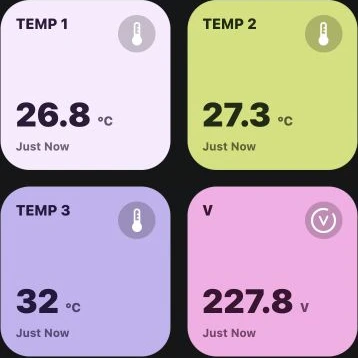
Choose your mobile platform. You need an account, an internet connection and compatible equipment connected to your project.
Install the app from the App Store and sign in with your YenGear IoT Cloud account.
The App Store provides the latest version available in your region.
Download the Android installer and sign in with your YenGear IoT Cloud account.
Checking Android download…
Android 6.0 or later. Allow installation from your browser when Android asks.
Using WeChat? Open the menu at the top right and choose Open in browser to download.
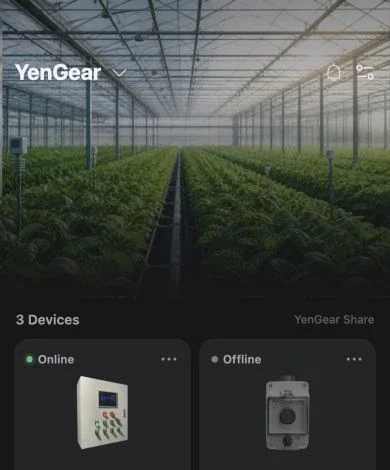
Open a project to see its devices and whether they are online or offline. Switch projects to check equipment at another site.
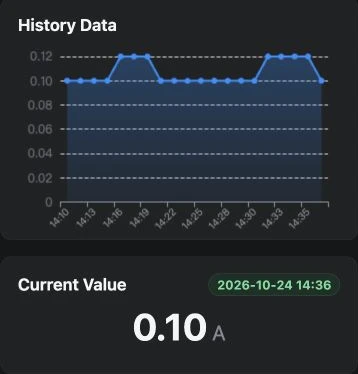
View measurements, units and update times on data-point cards. Open a data point to review its history alongside the current value.
Available measurements depend on the connected equipment and its configured data points.
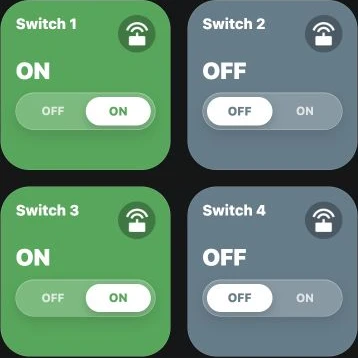
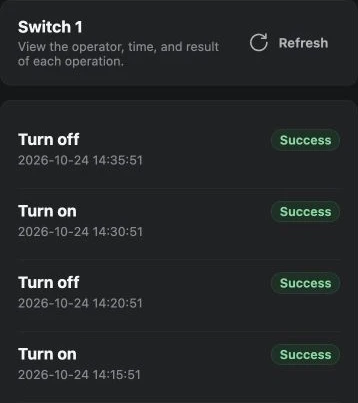
Send commands to compatible switches and motor controls from the device view. Review operation records when you need to check a control request.
Available controls depend on the device and your project permissions. Check equipment feedback to confirm the resulting state.
Automation management requires the appropriate permissions and a compatible project configuration.
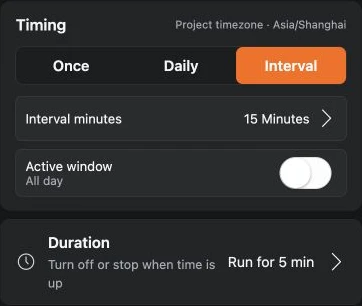
Choose when a supported control should operate and set a run duration where available. Review the target, action and enabled status in the schedule details.
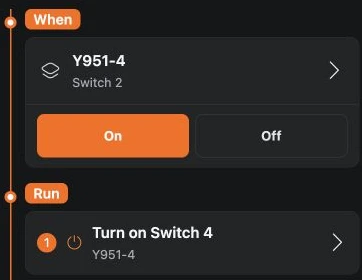
Configure conditions and actions for connected equipment. Open a rule to review its configuration and available execution records.
Use project access and assigned roles to determine what each team member can view, operate or manage.
Members see the projects, equipment and data their access covers.
Controls and automation depend on the role assigned in each project.
Organization owners manage project members and their access.
You need an account, an internet connection and compatible equipment connected to a YenGear IoT Cloud project. Features depend on the equipment, project configuration and your permissions.
The app works with compatible equipment connected to your YenGear IoT Cloud project. Send us your device model and monitoring or control requirements so we can confirm the connection path and available features.
Yes. Access to current cloud data and remote commands requires a working internet connection. Any operation that must continue locally depends on the controller and its configuration.
Control and management actions depend on the assigned role and project access. Users need the relevant permissions for the operation they want to perform.
Use the download section on this page. iPhone users can install from the App Store; Android users can download the APK. Sign in with your existing YenGear IoT Cloud account. Contact us if you need help connecting equipment or setting up a project.
Open this page in your phone browser, download the APK, then open it and follow the installation prompts. Android may ask you to allow this browser to install apps. If you opened the page in WeChat, choose Open in browser from its menu first.
Send your equipment model and what you need to monitor or control. Include your project name if you already use YenGear IoT Cloud.
Explore YenGear IoT Cloud